


How to securely erase an old computer
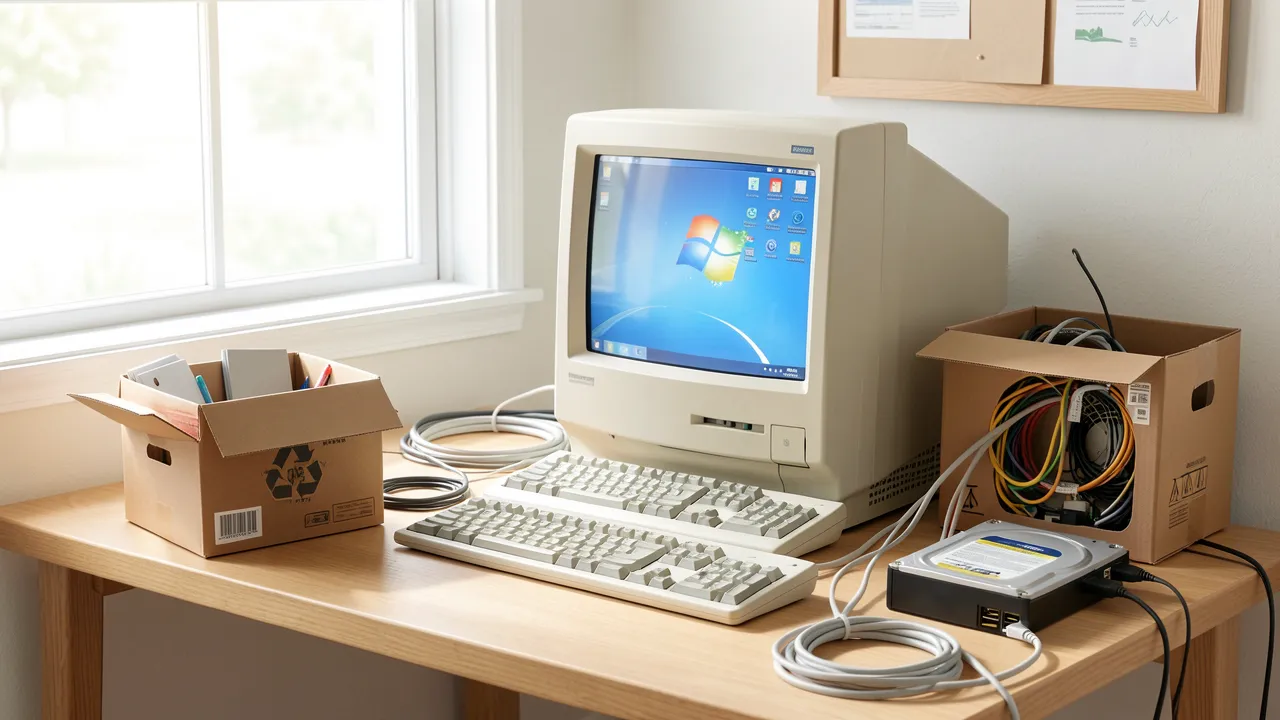
An old computer can hold far more personal information than you may expect, including saved passwords, tax documents, browser histories, photos, work files, and Wi-Fi credentials. Simply deleting folders or reinstalling the operating system does not reliably remove this data. Before selling, donating, recycling, or giving away a device, you should use an erasure method that matches its storage type and your intended next step.
Start by identifying what storage your computer uses
The safest erasure process depends on whether the computer contains a traditional hard disk drive, commonly called an HDD, or a solid-state drive, known as an SSD. HDDs store data magnetically on spinning platters, while SSDs store it in flash memory. These technologies require different treatment.
You can usually check the drive type through your operating system. On Windows, open Task Manager, select the Performance tab, and choose Disk. macOS users can check Disk Utility or System Information. If the device will not start, remove the drive only if you are comfortable handling computer hardware, or ask a qualified repair provider to identify it.
Before wiping anything, make a final backup of files you want to keep. Copy documents, photos, email archives, software licence details, and browser bookmarks to an encrypted external drive or a trusted cloud account. A tidy backup also makes migration easier when you replace the machine. Guidance on how to organize files across cloud storage can help you avoid losing track of copies spread across several services.
Also sign out of accounts linked to the machine. This includes Microsoft, Apple, Google, Adobe, browser sync services, password managers, and any workplace platforms. Remove the computer from the list of authorised devices in those accounts where possible.
Use the right secure erasure method for your drive
For a modern SSD, the best option is normally a built-in secure erase or cryptographic erase feature. Many manufacturers provide their own utility, and some BIOS or UEFI menus offer a secure erase command. This process resets the drive’s internal encryption keys or clears the flash storage in a way designed for SSD hardware.
Avoid repeatedly overwriting an SSD with third-party disk-wiping software. Older advice often recommends several overwrite passes, but this approach is intended for HDDs. SSD wear levelling means software cannot always reach every physical memory location, and excessive writing can shorten the drive’s usable life.
For an HDD, use a reputable drive-wiping tool that overwrites the entire disk. A single full overwrite is generally suitable for personal use when the drive will be reused. If the data is particularly sensitive, such as confidential client records or financial information, consider physical destruction rather than resale.
Windows users can also choose Reset this PC, then select “Remove everything” and the option to clean the drive. On recent Macs, Erase All Content and Settings is usually the most straightforward route for supported models. Older Macs may require starting in Recovery Mode, erasing the internal disk in Disk Utility, and reinstalling macOS.
If you are replacing the device, reviewing What to look for when buying a laptop for work or school may help you choose storage capacity, security features, and ports that suit your next computer.
Remove accounts, licences, and connected devices
A wiped drive is only one part of a safe handover. Many applications and services retain a connection to the computer after its files have been erased. Deauthorise software where licence limits apply, particularly creative tools, accounting software, security suites, and games.
For Windows computers, disable BitLocker only if a specific wiping tool requires it. Otherwise, encryption adds useful protection before and during the reset process. For Macs with Apple silicon or a T2 security chip, modern erase tools generally remove encryption keys as part of the reset.
Check your browser profile as well. Signing out of Chrome, Edge, Firefox, or Safari helps prevent synchronised data from appearing for the next user. Delete stored payment methods from websites and revoke active sessions through your account security settings.
Mobile devices often contain companion apps that can still access shared files or messages. Review how to manage app permissions on Android and iPhone if you use your phone to access cloud storage, remote desktop software, or computer-linked accounts.
Verify the wipe before passing on the computer
Once the erasure is complete, restart the computer. A device being sold or donated should open to the initial operating system setup screen, not your desktop, user account, or personal files. Do not complete setup with your own details after the wipe.
If you used a dedicated wiping tool, keep its completion report where available. This can be useful for business devices or records containing sensitive material. For computers that no longer function, the safest choice may be removing the drive and arranging certified destruction or recycling.
Printers, scanners, and multifunction devices can also store documents, addresses, and network credentials. If you are clearing an entire home office, How to fix common printer problems without a technician includes useful checks that can help you access device settings before resetting them.
Securely retiring your old computer protects your data
Before your old computer leaves your possession, use this practical checklist:
- Back up files you genuinely need and confirm the backup opens correctly.
- Sign out of cloud services, email accounts, browsers, and password managers.
- Remove the device from trusted-device and account-security lists.
- Use SSD secure erase or cryptographic erase for solid-state storage.
- Fully overwrite HDDs, or physically destroy them if the data is highly sensitive.
- Restart the computer and confirm that it displays only the new-user setup screen.
- Recycle unusable hardware through a reputable electronics recycling service.
A factory reset alone may not be enough, especially on older systems or devices with multiple drives. Taking time to identify the storage type, clear connected accounts, and verify the result gives you a far safer transition to your next computer.