


An editorial guide to technology trends, covering scanners, printers, computers, software, security, networks, mobile, and office tech.
Document scanning has become one of those quiet technologies that shapes how an office works without asking for attention. I write about it here because it sits at the intersection of scanners, software, security, and everyday productivity: a paper receipt becomes a searchable file, an archive becomes easier to share, and a desk that used to fill with folders starts to feel manageable. If you have ever lost time hunting for a contract, invoice, or signed form, you already know why this subject matters.
Why document scanning still matters in a digital workplace
I often think of document scanning as a bridge. On one side, there is paper: letters, receipts, memos, signed agreements, identity documents, and years of archive boxes. On the other side, there is a digital workspace where files can be searched, backed up, shared, and secured. The process may look simple, but the value is broader than turning a sheet into a PDF.
A scanned document can be indexed, routed, and stored in a way that a paper original cannot. That makes scanning relevant for small offices, large departments, home users, and field teams alike. A sales team can capture signed quotes. An accounting team can save supplier invoices. A legal office can preserve evidence with page fidelity. A family can archive records that otherwise fade in drawers and boxes.
For me, the real appeal is not just storage. It is access. When a document becomes searchable, it stops being a physical object you must remember to fetch. It becomes information you can retrieve in seconds. That shift changes how people work.
A short evolution from flatbeds to cloud workflows
The first office scanners were often slow, bulky, and tied to a desktop computer. They were useful, but they required patience. Over time, document scanning expanded into several forms: flatbeds for delicate originals, sheet-fed devices for stacks, mobile apps for quick capture, and multifunction printers that combine printing and scanning in one unit.
Software changed the game as much as hardware did. Optical character recognition, or OCR, made scanned pages searchable. File naming rules, automated routing, and cloud storage then turned scanning from a one-off task into part of a workflow. What used to be a manual chore now feeds document systems, shared drives, and collaboration platforms.
The main types of document scanning
Not every scanning job looks the same, and the tool should match the task. I usually group document scanning into a few practical categories because each one serves a different kind of workload.
| Type of scanning | Best for | Main advantage |
|---|---|---|
| Flatbed scanning | Photos, fragile papers, bound pages | Careful handling and detail |
| Sheet-fed scanning | Multi-page office documents | Speed and batch processing |
| Mobile scanning | Receipts, forms, quick capture on the move | Convenience and portability |
| MFP scanning | Mixed print/scan office use | Shared device, lower footprint |
Flatbed scanners
Flatbed scanners are the careful choice. You place a page on glass, close the lid, and scan it with minimal pressure. I use this category in my head for documents that are torn, curled, rare, or bound in a way that makes feeding risky. A certificate, an old photo attached to paperwork, or a fragile contract copy often belongs here.
The trade-off is speed. Flatbed scanning is deliberate. If you have 200 pages, you will feel that pace.
Sheet-fed scanners
Sheet-fed scanners are built for volume. Stack pages into the feeder, set the job, and let the machine pull document after document through quickly. For office teams that scan invoices, forms, and reports every day, this is the practical workhorse.
A good sheet-fed scanner should handle mixed paper sizes, detect double feeds, and keep pages aligned. I also pay attention to duplex scanning, which captures both sides in one pass. That detail saves real time.
Mobile and app-based scanning
Mobile scanning has changed expectations. A phone camera, paired with a scanning app, can produce a decent PDF in seconds. This is useful for travel receipts, field notes, whiteboard captures, and one-off documents that do not justify a dedicated scanner.
It is not perfect. Lighting, shadows, and perspective can affect quality. Still, for fast capture, it is often enough.
Multifunction printer scanning
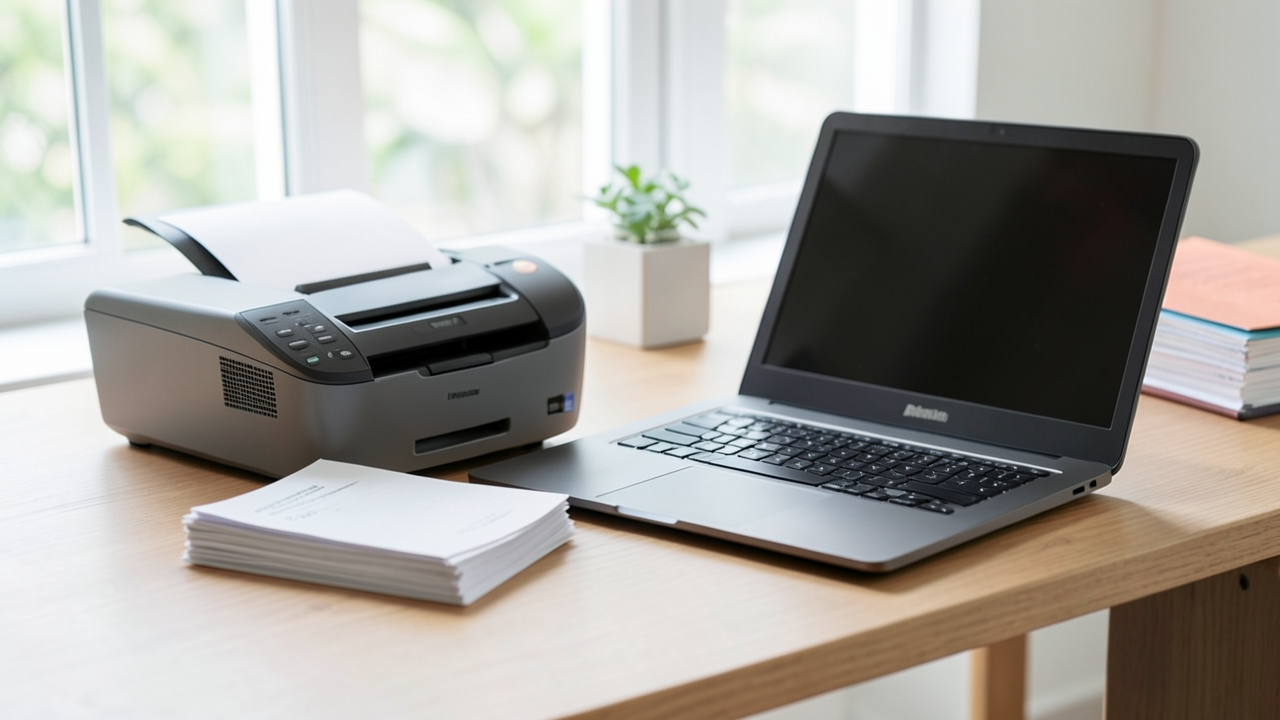
Many people meet document scanning through a multifunction printer. The appeal is obvious: print, copy, fax in some environments, and scan from the same device. This is often a sensible answer for small offices or shared spaces that need a single device rather than separate machines.
The compromise is specialization. A multifunction printer may be adequate, but a dedicated scanner often wins on speed, paper handling, and image consistency.
How I judge a document scanning setup
If I were advising someone choosing a scanning setup for real use, I would not start with brand names. I would start with workload. How many pages? What size? How sensitive are the originals? Do you need searchable text? Does the file go to a local folder, a cloud service, or a document management system?
Here are the factors I look at first:
• Speed: Pages per minute matter if scanning is routine.
• Resolution: Higher DPI helps with fine print, but it also increases file size.
• Duplex support: Essential for double-sided documents.
• Feeder capacity: Useful if you scan stacks rather than single sheets.
• OCR quality: Important if you want searchable text and accurate extraction.
• Connectivity: USB, Wi‑Fi, Ethernet, or direct cloud upload can shape workflow.
• Software compatibility: A scanner is only as good as the applications that manage it.
Matching quality to the actual use
Many buyers overestimate the need for extreme resolution. For ordinary office paperwork, clarity and legibility matter more than chasing a massive file. A clean 300 dpi scan is often enough for archiving and OCR. If the document contains small print, signatures, or fine diagrams, higher settings may help, but I would still test before making every file larger than necessary.
Color also deserves thought. A black-and-white scan is compact and readable for plain text. Grayscale works well for forms with stamps or shading. Color helps when visual cues matter, such as highlighted terms, annotated pages, or documents with seals and logos.
Software can be the deciding factor
Two scanners with similar hardware can feel completely different because of software. Good scanning software makes batch naming easy, handles page rotation, removes blank pages, and exports to the right destination without extra steps. Better software can recognize documents, split files by separator sheets, and send them to cloud folders or email workflows.
This is where document scanning becomes less about scanning and more about document handling. I find that distinction useful. One feature captures the page; another feature makes the page usable.
Common document scanning use cases across technology and office work
Document scanning touches many parts of a modern office, and it often appears in places people overlook. It is not only about archiving old paper. It is about moving information into systems that can act on it.
Administrative and finance workflows
Invoices, purchase orders, expense receipts, and vendor forms are some of the most common scan targets I see. Finance teams need documents that are legible, indexed, and easy to retrieve during audits or internal reviews. A scanned receipt without a file name is only slightly better than paper. A scanned receipt with date, vendor, and amount becomes useful.
Legal, compliance, and records management
Legal teams value consistency. Document scanning helps preserve signed agreements, case files, notices, and supporting evidence in a controlled format. Metadata matters here: who scanned it, when it was captured, and where the original now lives.
For compliance-heavy environments, the scan is rarely the end. It is part of a retention process, an approval workflow, or a secure archive. That is why document management software often enters the picture.
Human resources and onboarding
HR departments scan identity documents, signed policy acknowledgments, tax forms, and onboarding paperwork. The purpose is clear: reduce paper handling and make records easier to organize by employee or department. I would also note the privacy implications. These files contain personal data, so access control should be treated seriously.
Mobile and hybrid teams
Field workers, sales staff, consultants, and technicians often need document scanning away from the office. A mobile capture app can save a signed delivery note or a client form before the paper is misplaced. In hybrid environments, this flexibility matters because the document lifecycle begins wherever the work happens.
Practical tips for better scans and cleaner archives
Good document scanning is partly about the machine and partly about the habit. I have seen excellent hardware produce messy archives because nobody agreed on naming, filing, or quality checks. A few routines make a big difference.
Before you scan
- Remove staples, paper clips, and sticky notes.
- Sort by document type before starting.
- Flatten curled pages where possible.
- Check for smudges on the glass or feeder rollers.
- Decide whether the file should be PDF, TIFF, or another format.
While you scan
I prefer to keep settings consistent unless a document clearly needs special handling. That means using a standard resolution, a repeatable file name pattern, and the same destination folder whenever possible. If a batch contains odd pages, separator sheets can be useful for splitting one job into multiple files.
If OCR is important, I run a quick test page first. A clean test tells me whether text recognition is working well enough before I commit a larger batch. This saves time and prevents discovery of problems after the originals have already been filed away.
After you scan
The scan is not finished when the page disappears into the device. I always recommend a quick review of the first and last pages, file size, and page count. If the file is meant to replace paper for regular work, search for a word or name inside it. That confirms OCR and helps uncover issues with skew, blur, or contrast.
A sensible archive also needs structure. I like file names that answer three questions: what it is, when it was created, and who it belongs to. For example, « invoice-acme-2025-03.pdf » is far more useful than « scan001.pdf ». The same logic applies to folders.
Security, privacy, and the hidden side of scanning
Document scanning is often described as a productivity feature, but it also has a security dimension. Once a paper document becomes a digital file, it can be copied, shared, synced, and backed up. That is helpful, but it also creates exposure.
Scanned documents may include personal IDs, payment records, medical forms, contracts, or internal memos. I would treat those files the same way I treat any sensitive digital asset: limit access, use strong authentication, and store them in approved systems. If scanning software offers encryption, secure upload, or audit logs, those features deserve attention.
There is also a workflow risk. A paper process may feel slower, but it can be local and visible. A scan sent to the wrong folder, shared drive, or email address can move quickly and be hard to trace. That is why scanning policies matter. Who can scan? Where does the file go? How long is it retained? Who can delete it? These questions prevent small mistakes from becoming large ones.
Closing notes on document scanning
Document scanning looks simple on the surface, but it sits at the center of how modern workplaces handle information. It connects hardware, software, office routines, and security into one everyday workflow. When the setup is thoughtful, paper becomes easier to manage and digital records become easier to trust. That is the real value I see in it: not a scan for its own sake, but a better way to work with the documents that still shape business life.
Latest articles

How to choose reliable heated motorcycle gloves for winter

Choosing sandpaper grit for wood: a smarter workshop workflow
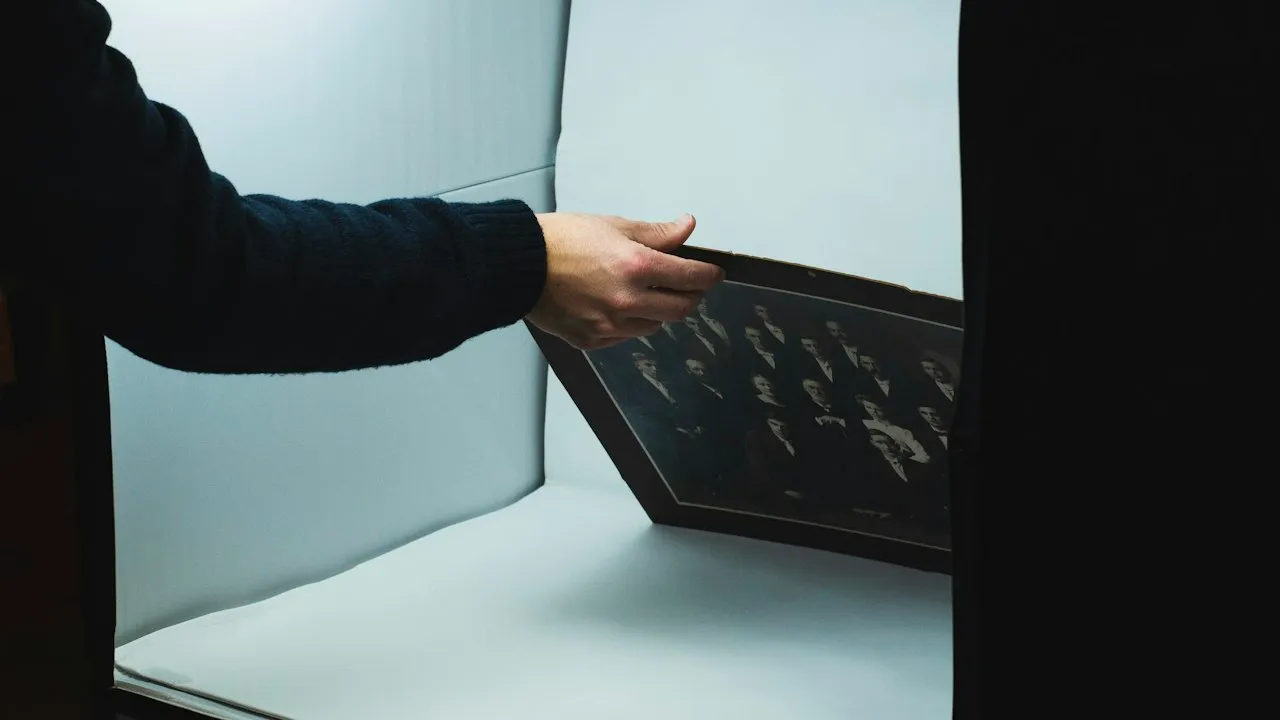
How to scan fragile photos without damage
How to securely erase an old computer
How to manage app permissions on Android and iPhone
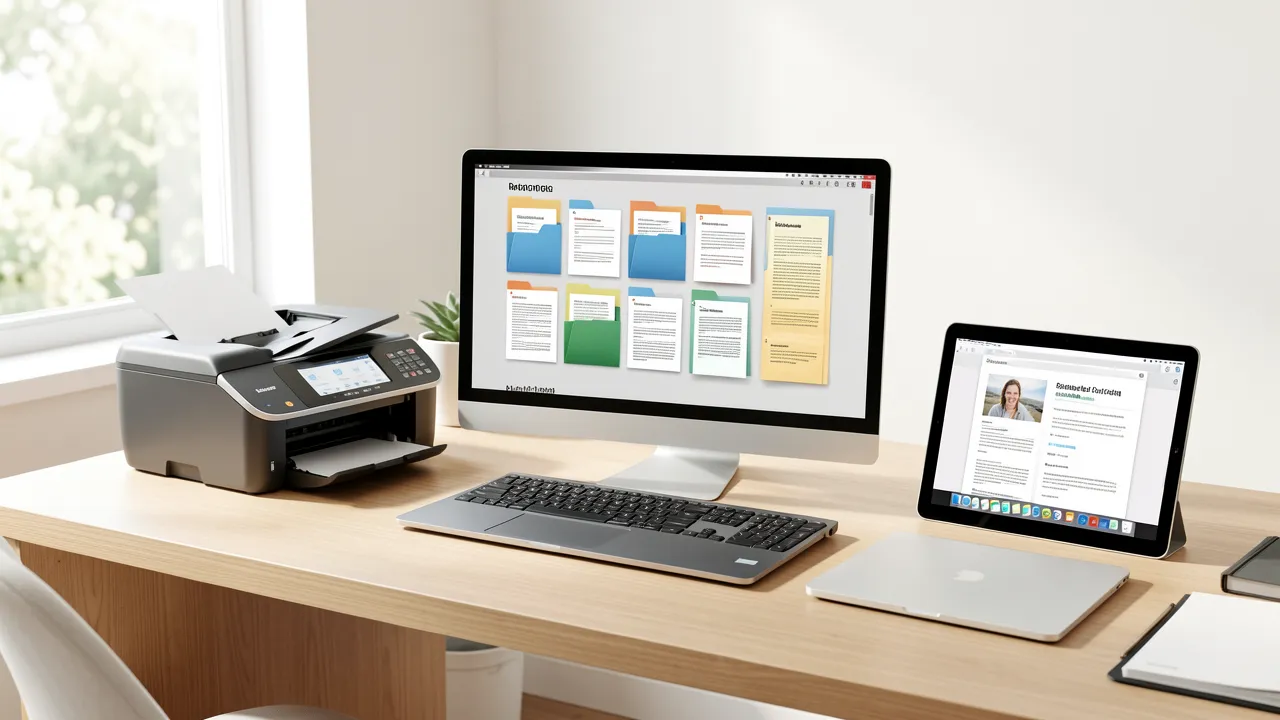
How to set up a paperless office workflow
How to organize files across cloud storage

Best ways to extend phone battery life

What to look for when buying a laptop for work or school
How to protect your devices from malware and phishing attacks

How to improve Wi-Fi speed and coverage at home
How to fix common printer problems without a technician