

How to choose an ergonomic office keyboard
Choosing an ergonomic office keyboard can reduce strain during long workdays and make typing feel more controlled. The right model depends on your hand size, desk layout, typing habits and any discomfort you already experience. Rather than selecting a keyboard solely for its appearance or price, focus on how it supports a neutral wrist position and a sustainable daily workflow.
Start by assessing your typing posture
Before comparing products, look at the way you currently type. Sit at your desk with your shoulders relaxed, elbows close to your body and forearms roughly parallel to the floor. Your wrists should remain straight rather than bent upwards, downwards or sideways.
A keyboard that is too high may force your wrists to extend. One that is too wide can push your mouse hand too far from your body. These small positioning issues can become noticeable after several hours of emails, reports, spreadsheets or coding.
Look for signs that your current setup needs attention:
- Tingling, stiffness or soreness in the hands or wrists
- Tension in the forearms, shoulders or neck
- A habit of resting your wrists on a hard desk edge
- Frequent reaching for the mouse
- Fatigue after routine typing tasks
Persistent pain should be discussed with a qualified healthcare professional. An ergonomic keyboard can support better working habits, but it is not a substitute for medical advice or regular movement.
Choose a layout that matches your work style
Ergonomic keyboards come in several layouts, and each changes the position of your hands in a slightly different way. The best option is one you can use comfortably without slowing your work for longer than a short adjustment period.
Split keyboards can reduce inward wrist bending
A split keyboard separates the left and right key areas. Some models have a fixed gap in the middle, while fully split versions allow you to place each half independently.
This design can help you position your hands closer to shoulder width, reducing the tendency to angle your wrists inward. A fully split keyboard can suit people who type intensively, use a large chair armrest or want to place the mouse between the two halves.
However, split layouts require an adaptation period. Common shortcuts and touch-typing patterns may feel unfamiliar for the first few days.
Tented keyboards change the angle of your forearms
Tenting raises the centre of the keyboard, creating a shallow inverted V shape. This can allow your forearms to rotate into a more natural position, with palms facing slightly towards each other rather than directly downwards.
Adjustable tenting is especially useful because comfort varies from person to person. Begin with a low angle, then increase it gradually if it feels natural. Too steep an angle can make some keys harder to reach.
Compact models can bring the mouse closer
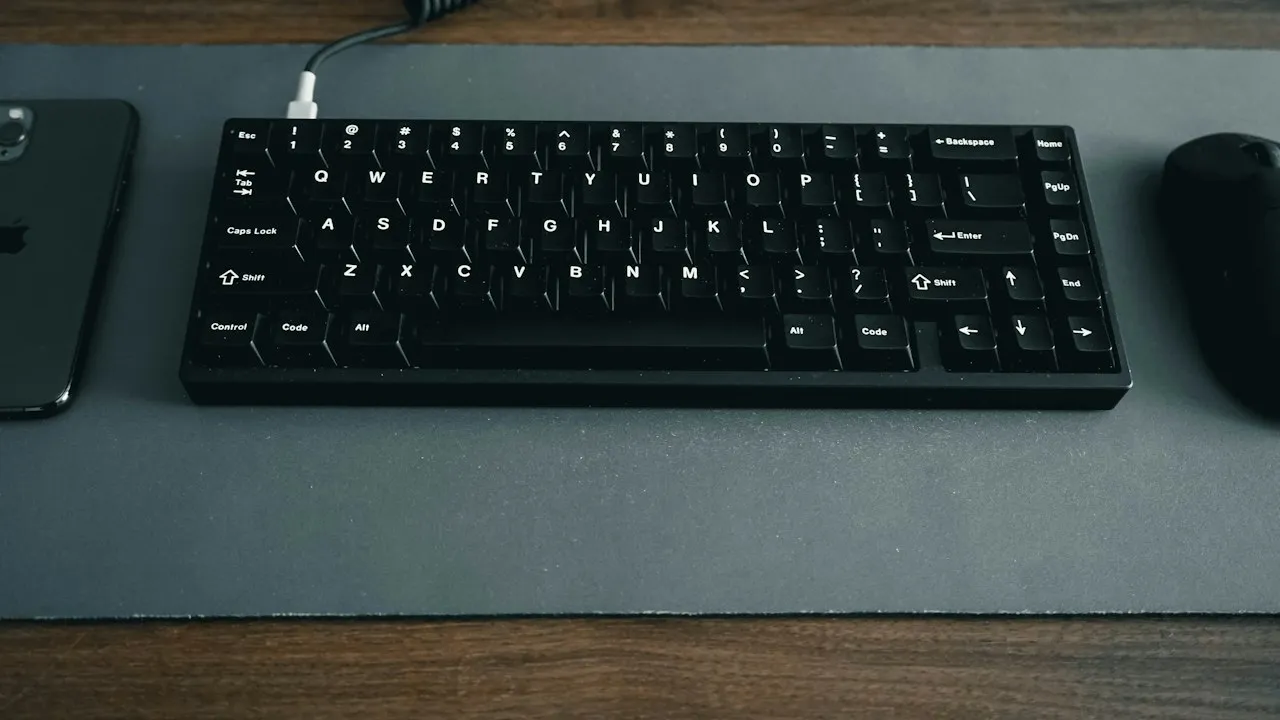
A tenkeyless keyboard removes the numeric keypad. Smaller layouts may also remove navigation keys or function rows. These designs reduce the distance between your keyboard and mouse, which may help if you frequently switch between typing and pointing tasks.
If you regularly enter financial data, a separate numeric keypad may be more practical. You can position it on either side of the keyboard depending on the task and your dominant hand.
Check the key feel, height and adjustability
An ergonomic shape alone does not guarantee comfort. The typing experience matters just as much. Try to assess the keyboard’s key travel, resistance and overall height before you buy.
Low-profile keyboards sit closer to the desk and may reduce the need to lift your wrists. Mechanical keyboards offer more tactile feedback, although some models require more force than others. Scissor-switch keys are often quiet and familiar for office use.
Look for adjustable feet with a negative tilt option. Negative tilt means the front edge of the keyboard is slightly higher than the back edge, which can discourage upward wrist extension when the keyboard sits below elbow level.
A wrist rest can be useful during pauses, but avoid pressing your wrists into it while typing. Support should be placed under the heel of the hands or palms, not directly on the wrist joints.
For practical workstation guidance, the UK Health and Safety Executive’s display screen equipment advice offers a helpful reference point for screen, chair and keyboard positioning.
Consider connectivity and office compatibility
Wired keyboards offer reliable connectivity and eliminate charging concerns. They are a sensible choice for fixed desks, shared workstations and environments with strict IT policies.
Wireless keyboards create a cleaner workspace and work well with laptops, docking stations and hot-desking arrangements. Check battery life, charging method and whether the device supports Bluetooth, a USB receiver or multi-device pairing.
If you switch between a work laptop, desktop computer and tablet, a keyboard with dedicated device-switching buttons can save time. Review the operating system compatibility too, particularly if you use Mac and Windows devices interchangeably.
Build the keyboard into a healthier workspace
Your keyboard works best as part of a considered desk setup. Position it directly in front of you, keep commonly used items within easy reach and make room for your mouse. A document holder can reduce repeated head movement when you work from printed materials.
If you are reducing paper use while refining your desk arrangement, How to set up a paperless office workflow can help you organise digital documents and daily processes more efficiently.
Take short movement breaks throughout the day. Change position, relax your hands and look away from the screen regularly. Even a well-designed keyboard cannot offset hours spent in one fixed posture.
Make your final choice based on daily comfort
The most suitable ergonomic keyboard is one that supports your body and your actual workload. If possible, test a model before purchase or buy from a retailer with a clear return policy. Give yourself time to adapt, especially with split or tented layouts.
Keep these points in mind when comparing options:
- Choose a layout that keeps your wrists straight and shoulders relaxed.
- Consider split, tented or compact designs according to your desk habits.
- Check key resistance, keyboard height and tilt adjustment.
- Match wired or wireless connectivity to your equipment and workplace rules.
- Reassess your chair, monitor and mouse position alongside the keyboard.
A comfortable keyboard setup can make routine office work less tiring and help you maintain a more consistent posture over time.