


How to improve Wi-Fi speed and coverage at home
Slow Wi-Fi can turn everyday tasks into frustration: videos buffer, calls freeze, and smart devices respond late. When I look at a home network, I usually find that the problem is not one single fault, but a combination of router placement, interference, outdated hardware, and poor configuration. The good news is that you can often improve Wi-Fi speed and extend Wi-Fi coverage with a few practical changes, without replacing every device in the house.
Start With the Router’s Location
Place it where signals can travel freely
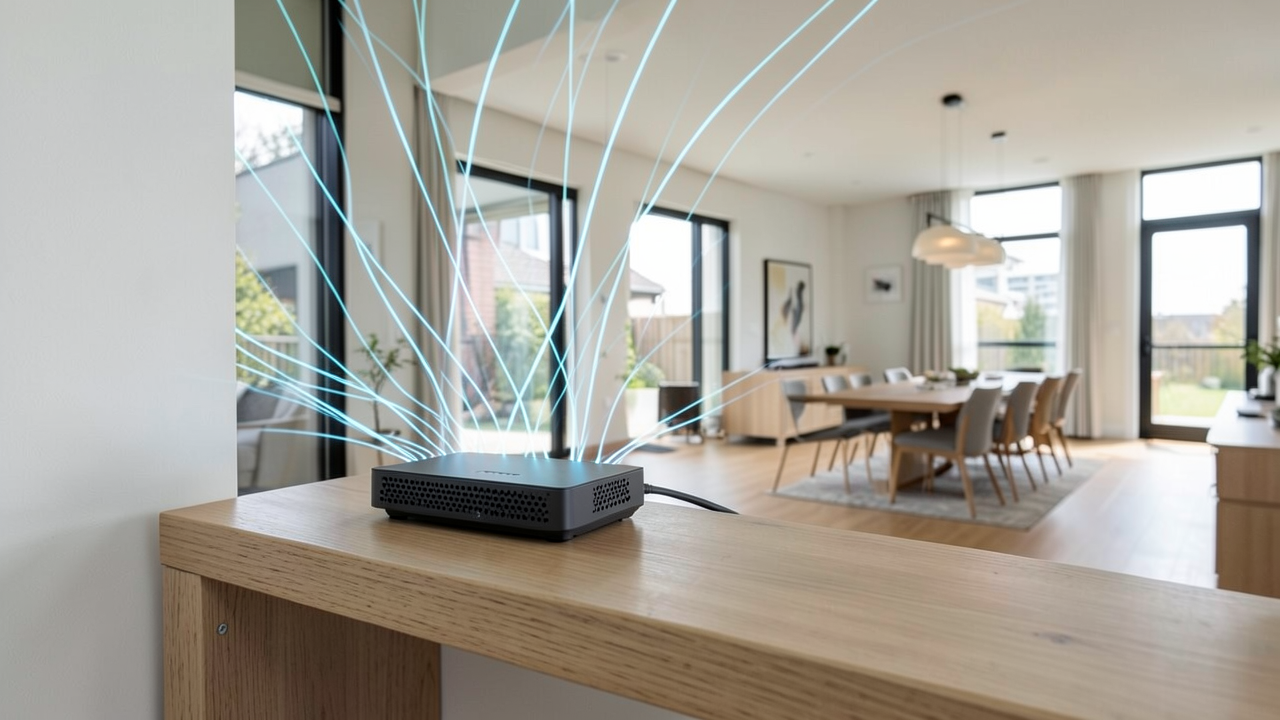
I always begin with router placement because it has a direct effect on both speed and coverage. Put the router in a central, elevated, open location rather than hiding it in a cabinet or corner. Walls, furniture, mirrors, and appliances can weaken the signal before it reaches other rooms.
If your home has multiple floors, place the router on the floor that serves the most devices, ideally near the center of that level. I also recommend keeping it away from thick concrete walls, metal shelves, microwaves, and cordless phone bases, all of which can interfere with wireless performance.
Aim antennas properly
If your router has external antennas, adjust them rather than leaving them in one fixed position. I usually point one vertically and, if there is a second or third antenna, angle them slightly. That can help spread the signal more evenly across rooms and floors.
Fine-Tune the Wireless Setup
Choose the right band
Most modern routers offer 2.4 GHz and 5 GHz bands. The 2.4 GHz band reaches farther but is usually slower and more crowded. The 5 GHz band is faster but works best over shorter distances.
My rule is simple:
- Use 5 GHz for devices near the router, such as laptops, TVs, and game consoles
- Use 2.4 GHz for devices farther away, like smart plugs or cameras
- If your router supports it, let band steering handle the choice automatically, then test whether manual separation works better
Pick a less crowded channel
In apartment buildings or dense neighborhoods, nearby networks can overlap and slow everything down. Access your router settings and check which wireless channel it uses. For 2.4 GHz, channels 1, 6, and 11 are usually the best starting points because they do not overlap as much. For 5 GHz, try a less congested channel if your router lets you choose manually.
If you are unsure where to start, I suggest using a Wi-Fi analyzer app to identify crowded channels in your area. That small change can sometimes make a noticeable difference in home network optimization.
Upgrade What Matters Most
Replace outdated hardware
Even a fast internet plan can feel slow if the router is old. If your router is several years old, it may not support the latest Wi-Fi standards or handle many connected devices efficiently. I look for support for Wi-Fi 5 or Wi-Fi 6, depending on the devices in the home, and for features such as beamforming and multi-device handling.
Also check your modem if you use a separate one. An aging modem can limit performance before the signal even reaches the router.
Use a mesh system or extender wisely
If some rooms have weak signal, a mesh Wi-Fi system is often a better solution than a basic extender. Mesh nodes work together to create a more seamless network, while many extenders can cut speed by repeating the signal in a less efficient way.
I usually recommend a mesh setup when:
- The home is large or multi-story
- Walls are thick or signal-blocking
- Dead zones appear in several rooms
- Many people use the network at the same time
A single extender can still help in a small space, but it works best when placed halfway between the router and the weak area, not in the dead zone itself.
Clean Up the Network Load
Reduce unnecessary traffic
Sometimes the network feels slow because too many devices are using bandwidth at once. Streaming, cloud backups, gaming updates, and smart-home devices can compete with each other. I like to review what is connected and remove devices I no longer use.
You can also improve performance by:
- Scheduling large downloads and backups for off-peak hours
- Pausing automatic updates when working or streaming
- Limiting high-bandwidth activities during video calls
- Prioritizing work devices through Quality of Service, if your router supports it
Switch to wired connections where possible
For devices that stay in one place, Ethernet is still the most reliable option. I connect desktops, gaming consoles, and smart TVs by cable whenever I can. That frees up Wi-Fi bandwidth for mobile devices and often improves stability.
Keep the System Maintained
Update firmware and reboot regularly
Router firmware updates can improve security, stability, and performance. I check for updates through the router app or admin page and install them when available. A reboot can also clear temporary glitches, especially if the network has been running for a long time without a restart.
Use stronger security
Weak security can slow a network if unauthorized devices connect to it. I recommend WPA2 or WPA3, a strong unique password, and turning off guest access when it is not needed. Better security also protects personal data, so it serves two purposes at once.
A Practical Checklist for Better Coverage
Here is the quick version I would follow when improving a home network:
- Move the router to a central, open, elevated spot
- Separate devices by band: 2.4 GHz for range, 5 GHz for speed
- Test wireless channels and choose a less crowded one
- Update router firmware and replace outdated equipment
- Add mesh nodes or an extender if dead zones remain
- Use Ethernet for stationary high-demand devices
- Reduce simultaneous heavy usage
- Secure the network with a strong password and modern encryption
A Faster, More Reliable Home Network
Improving Wi-Fi at home usually comes down to a mix of placement, settings, and equipment choices. I start with the simple fixes first because they cost little and often deliver the biggest gain. If the signal still does not reach every room, then I move to hardware upgrades and network expansion.
If you want to improve Wi-Fi speed and get better Wi-Fi coverage tips working in real life, focus on the entire system rather than one device. With a few deliberate adjustments, you can build a home network that feels faster, steadier, and far less frustrating.