


How to organize files across cloud storage
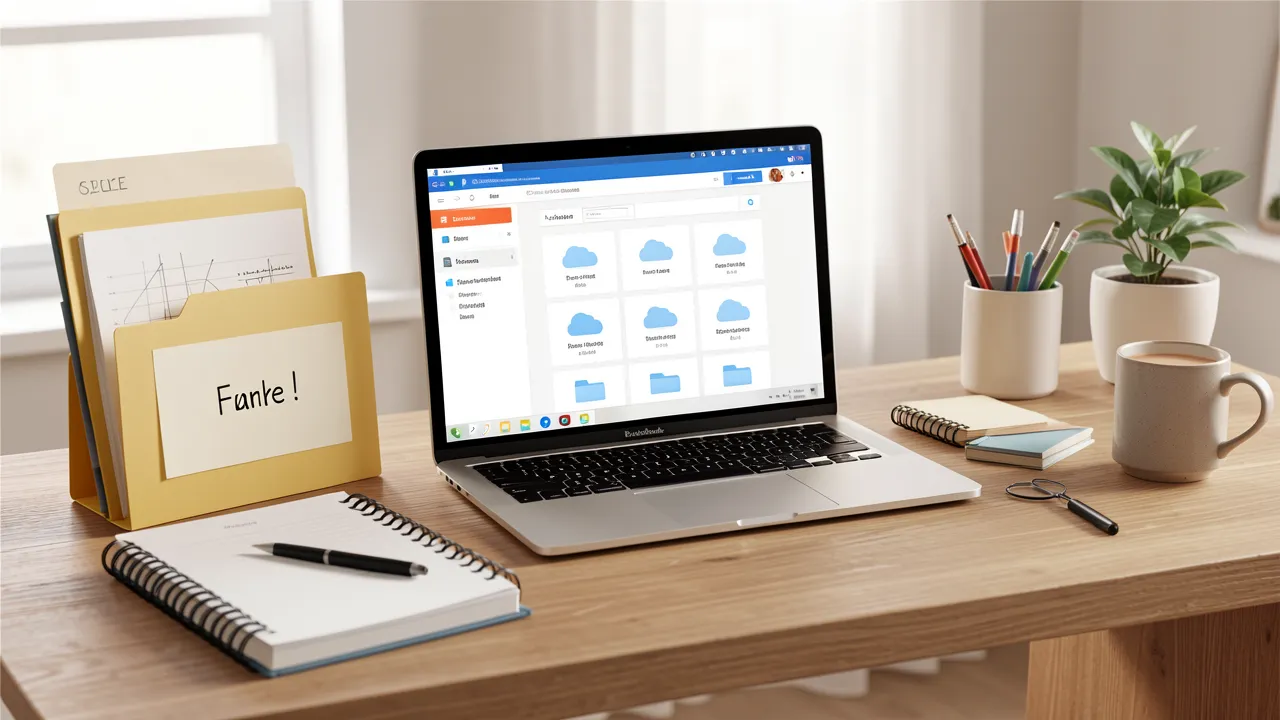
Cloud storage makes it easy to access documents, photos, and project files from almost any device. Yet convenience can quickly turn into clutter when files are spread across Google Drive, OneDrive, Dropbox, iCloud, and work platforms. A clear system helps you find what you need quickly, reduce duplicate copies, and keep sensitive information under control. With a few consistent rules, you can turn several cloud accounts into a manageable workspace.
Start by mapping where your files currently live
Before moving folders or renaming documents, make a simple inventory of your storage services. List each account, its purpose, available space, and the types of files it contains. You may have one personal Google Drive, a company OneDrive account, a photo library in iCloud, and shared Dropbox folders for clients.
This review often reveals unnecessary overlap. For example, the same PDF may be stored in an email attachment folder, a desktop backup, and two cloud drives. Decide which service will act as the primary home for each category.
A practical division could look like this:
- Google Drive for personal documents and collaborative files
- OneDrive for Microsoft Office work and business records
- iCloud Drive for files used mainly on Apple devices
- Dropbox for external client sharing or team projects
- A dedicated backup service for long-term copies
If you regularly digitise paper records, use a consistent destination from the beginning. Guidance on How to choose the right scanner for home and office use can help you select a device that fits your filing process rather than adding another source of disorganised documents.
Build a folder structure that matches your real activities
The best folder structure is not the most complex one. It is the one you will use every day without hesitation. Start with a small number of top-level folders based on your responsibilities, such as Personal, Work, Finance, Household, Projects, and Archive.
Within each top-level folder, create predictable subfolders. A freelance designer, for instance, could use Work > Clients > Client name > 2025 > Deliverables. A household system might use Household > Insurance, Household > Utilities, and Household > Repairs.
Use the same naming logic across every platform. If project folders use dates first in OneDrive, follow that rule in Google Drive as well. Consistency reduces the time spent wondering where a file belongs.
File names should be specific enough to make sense outside their original folder. Instead of Final.pdf, use 2025-04-18_Contract_SmithConsulting_signed.pdf. Dates written as year, month, and day sort correctly in most services.
Avoid deeply nested folders when possible. A structure with five or six levels can become frustrating on a phone or tablet. If a folder becomes crowded, use clearer names or an archive folder rather than endlessly adding subfolders.
Separate active files from archives and backups
Active work deserves a different location from material you rarely need. Keep current projects in easily accessible folders, then move completed work into a yearly archive. This reduces visual noise without deleting information that may still be useful.
For example, a folder named Archive > 2024 > Closed projects is easier to search than a main Projects folder containing several years of old work. Set a monthly or quarterly reminder to archive finished items.
Remember that synchronisation is not the same as backup. If you accidentally delete a file in a synchronised folder, that deletion may spread to every connected device. Maintain at least one independent backup copy for irreplaceable records, family photos, tax documents, and major work files.
Security should also shape your organisation. Keep confidential documents in a restricted folder, review sharing permissions regularly, and remove access when a project ends. The steps in How to protect your devices from malware and phishing attacks are useful when your cloud accounts are accessed from multiple computers and mobile devices.
Use sharing rules to prevent duplicate versions
Shared folders are helpful, but they can create confusion when several people upload revised files with unclear names. Agree on a simple process before collaboration begins. Decide who owns the master folder, who can edit, and how final versions will be labelled.
Many cloud services provide version history, so there is rarely a need to create files called report_final, report_final2, and report_final_reallyfinal. Use the platform’s version controls and reserve file-name labels for meaningful stages, such as draft, review, or approved.
When sending files to people outside your organisation, share a folder or link rather than emailing multiple attachments. Set an expiry date for sensitive links where available. Give view-only access unless editing is genuinely required.
Mobile access needs attention too. If you save files from a phone, create a routine for sorting screenshots, downloads, and scanned documents. Battery management can support this routine when you rely on cloud uploads while travelling. Review Best ways to extend phone battery life if your device often runs out of power before files have finished syncing.
Maintain your system with short, regular reviews
Cloud storage stays organised through maintenance, not one large clean-up. Schedule a brief review every month. Delete temporary downloads, empty duplicate folders, check storage limits, and move completed work to the archive.
Use built-in search tools before creating a new folder. A quick search may reveal that the relevant project already exists under a slightly different name. Tags, stars, favourites, and colour labels can also help you identify urgent folders without moving them.
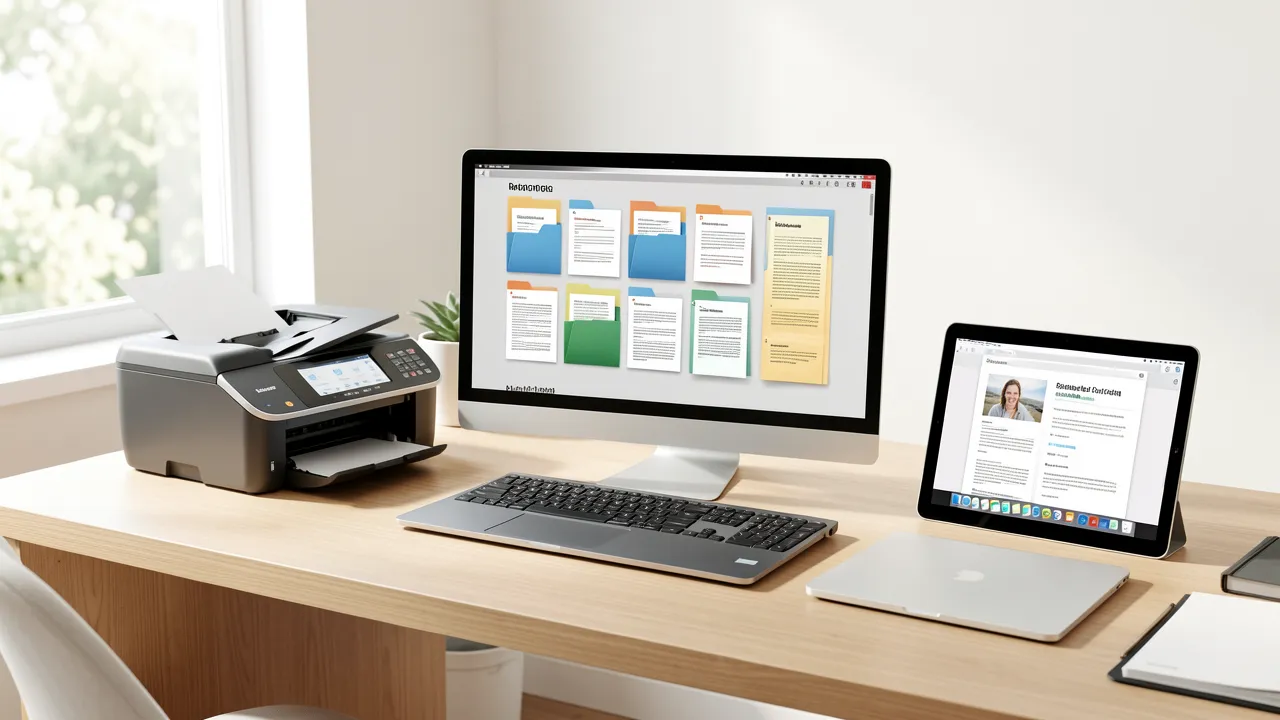
Printer and scanner workflows deserve the same discipline. Save scanned files directly into their final cloud folder, then verify that the upload completed before discarding a paper copy. If printing interrupts your document routine, How to fix common printer problems without a technician offers practical checks that can reduce unnecessary delays.
A reliable cloud filing system saves time every day
A well-organised cloud system does not require perfect discipline or expensive software. It relies on a small set of rules that remain stable across your devices and accounts.
- Assign each cloud service a clear primary purpose.
- Use consistent folder names and file naming conventions.
- Keep active files separate from archived material.
- Treat synchronised storage and backup as different functions.
- Review sharing permissions and version history for collaborative folders.
- Reserve a short monthly session for filing, deleting, and archiving.
When your folders reflect the way you actually work, cloud storage becomes less of a digital dumping ground and more of a dependable tool for daily tasks.