


How to manage app permissions on Android and iPhone
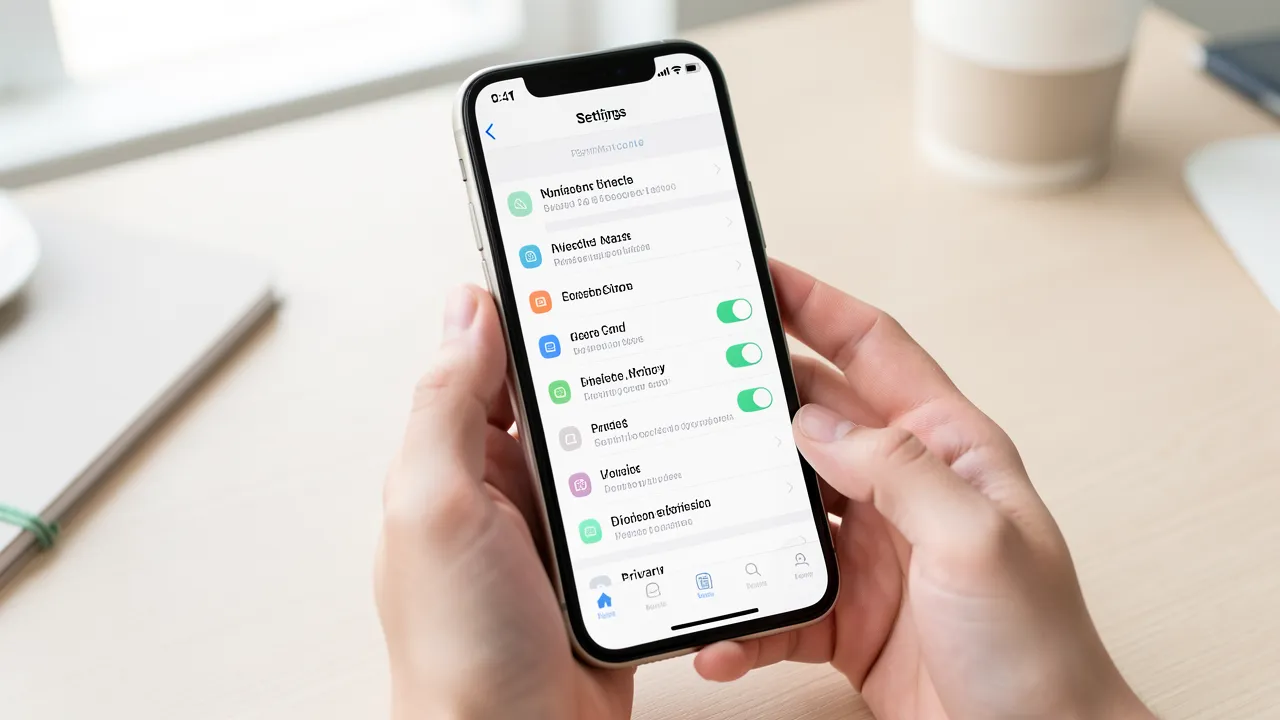
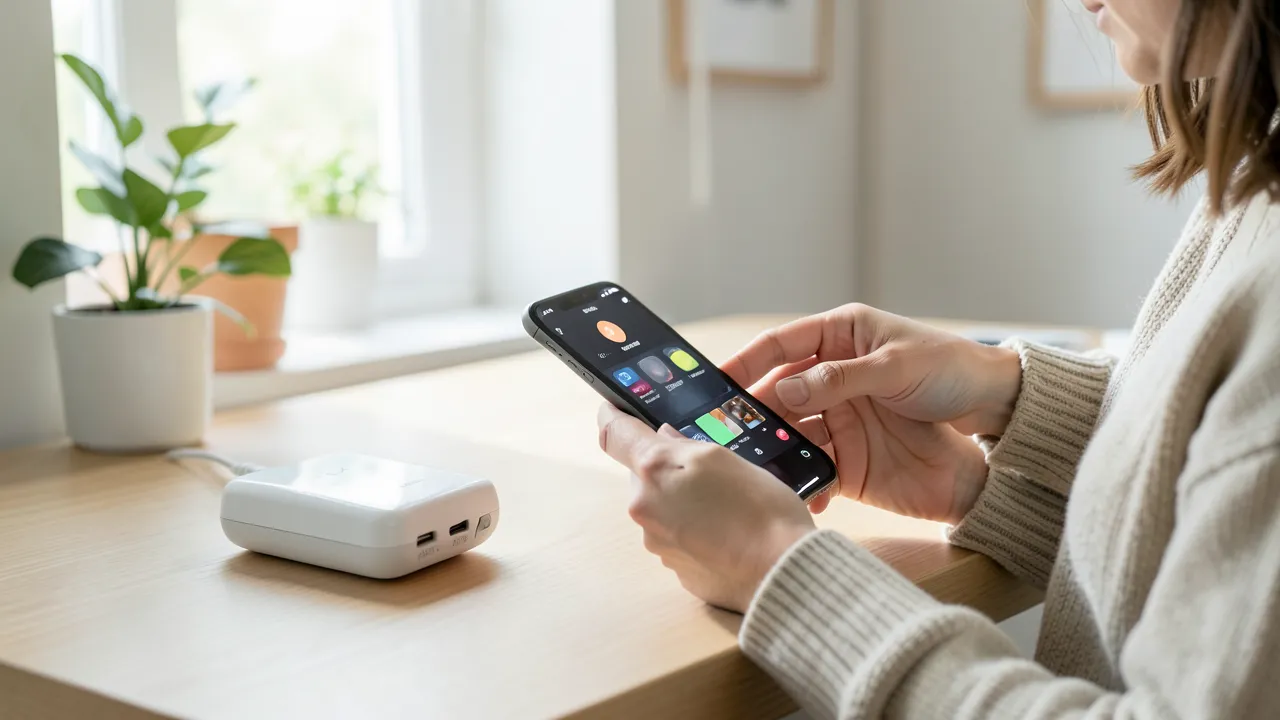
App permissions determine what information and hardware features an application can access on your phone. Location, contacts, camera, microphone, photos, and notifications can all be useful when granted to the right app. However, permissions that are left unchecked may expose more personal data than you intend. Reviewing them regularly helps you maintain better control over your privacy on both Android and iPhone.
Start by understanding what each permission allows
Not all permissions carry the same level of risk. A weather app may need approximate location to show local forecasts, while a navigation app needs precise location during a journey. A torch app, by contrast, has no clear reason to request contact access or microphone use.
Before accepting a request, consider whether the permission is necessary for the app’s main function. If an app works without that access, denying it is usually the safer choice. You can also grant some permissions only while the app is active, reducing background access.
The permissions most worth reviewing include:
- Location, especially precise location and background tracking.
- Camera and microphone, which can capture sensitive content.
- Contacts, calendars, call logs, and text messages.
- Photos, videos, and files stored on the device.
- Notifications, which can reveal private information on a locked screen.
- Bluetooth and nearby devices, often used to identify accessories or nearby hardware.
A useful routine is to inspect permissions whenever you install a new application and again after major app updates.
Android gives you detailed permission controls
On most Android phones, open Settings, select Privacy or Security and privacy, then choose Permission manager. The wording varies slightly between manufacturers, but the general process remains similar. You can select a permission category, such as Location or Microphone, and see every app that has access.
Android commonly offers choices such as “Allow only while using the app”, “Ask every time”, “Allow all the time”, or “Don’t allow”. For location access, “Allow only while using the app” is a sensible default for many services. “Ask every time” can work well for apps you use infrequently.
You may also review individual apps by opening Settings, then Apps, selecting the app, and tapping Permissions. This approach is useful when you notice an unfamiliar app or want to remove access quickly.
Battery usage can provide another clue about apps that are too active in the background. Check Best ways to extend phone battery life for practical ways to identify settings and apps that consume unnecessary power.
Pay attention to special Android permissions
Some Android permissions sit outside the usual permission manager. These include “Display over other apps”, “Install unknown apps”, “Accessibility”, and “Device admin apps”. They can be legitimate for password managers, screen filters, or workplace tools, but they deserve closer scrutiny.
Accessibility access is particularly powerful because it may allow an app to read screen content or perform actions on your behalf. Only enable it for trusted services from reputable developers.
iPhone permission settings are simple to review
On an iPhone, go to Settings, then tap Privacy & Security. You can open categories including Location Services, Contacts, Microphone, Camera, Photos, Bluetooth, and Tracking. Each category lists the apps that have requested access.
For location services, iPhone provides options such as Never, Ask Next Time Or When I Share, While Using the App, and Always. You can also turn off Precise Location for apps that only need a general area. A local news app may still provide relevant content with approximate location, while a ride-hailing app may require precise location when you book a journey.
To review one application at a time, scroll down in Settings and select the app name. Its page shows available permissions, notification preferences, mobile data settings, and tracking controls.
Apple’s App Tracking Transparency feature lets you block apps from tracking activity across other companies’ apps and websites. In Settings, Privacy & Security, Tracking, you can disable “Allow Apps to Request to Track” or manage permissions app by app.
Match access to the way you use each app
Permissions are not permanently fixed. You can change them as your habits change. A holiday planning app might need location and photo access for one week, then require neither once you return home.
For file-related apps, grant access only to the folders, images, or documents needed for the task. Both Android and iPhone increasingly allow selective photo access, so an app can receive a few chosen images rather than your entire library.
If you use several cloud platforms, tidy file structures reduce the chance of sharing the wrong document through an app. The guidance in How to organize files across cloud storage can help you keep personal and work material separated.
For paper documents, consider whether an app needs broad storage access or only temporary camera access to scan one page. How to set up a paperless office workflow offers useful ways to build a more controlled digital document process.
Review overlooked permissions and remove unused apps
Notification permissions deserve attention because they affect both privacy and concentration. Disable alerts from shopping, gaming, or social apps that do not require immediate attention. You can usually retain essential notifications, such as delivery updates or banking security alerts, while silencing promotional messages.
Also remove apps you no longer use. An unused application can retain access to data, receive security updates less reliably, and occupy storage. Before deleting a scanning app, export any saved documents you need. If you are selecting a replacement, How to choose the right scanner for home and office use can help you compare practical features.
Keep your operating system and applications updated. Security updates can correct permission-related weaknesses and give you more granular controls.
- Grant permissions according to an app’s genuine purpose.
- Prefer “while using the app” or one-time access where available.
- Review location, camera, microphone, photo, and tracking settings regularly.
- Inspect special Android access, particularly accessibility and overlay permissions.
- Delete unused apps and keep active apps updated.
Keep your mobile privacy under your control
Permission management does not require you to avoid useful apps. It allows you to decide what each service can access and when that access is justified. A short review every few months, combined with cautious choices at installation, can make your Android phone or iPhone more private without making it less useful.